Buy points and check a payment
Buy points when you need more room to create. Points packages are one-time purchases, not subscriptions, and purchased points do not expire.
Choose a points package
Open Account, then Top up. Check that you are signed in to the PixelForce account you want to use, and choose a package under Choose your points. The available packages include 120 and 800 points; the top-up screen lists the current options.
Your PixelForce account receives the points. The Apple or Google account used to pay may be different, so check your PixelForce account before continuing.
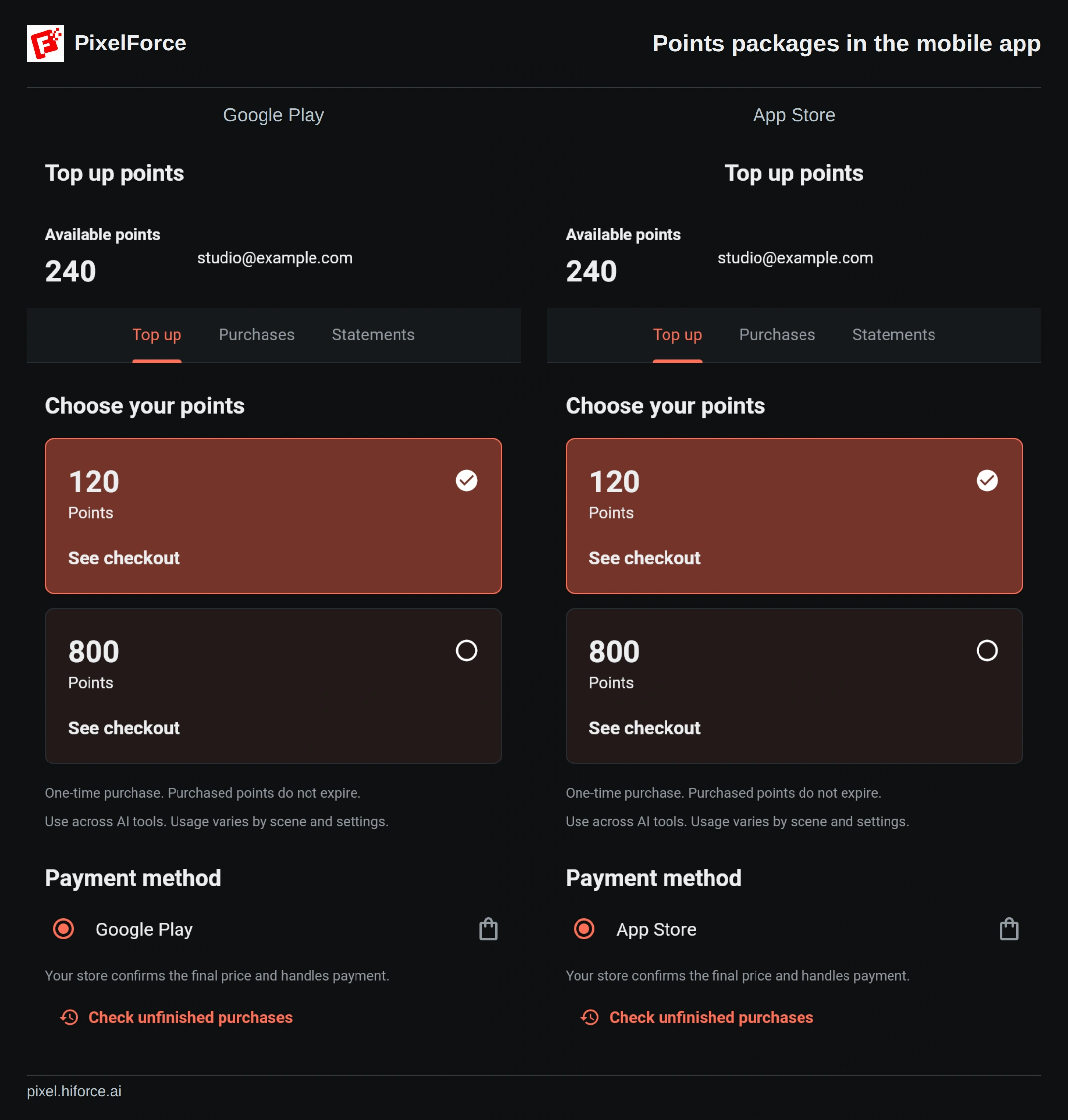
Where to find current prices
For website package prices, visit the PixelForce homepage. In the mobile app, check the in-app purchase price for your App Store or Google Play country or region. The amount and currency displayed before you confirm payment are the ones that apply.
Website and app-store prices may differ. Changing the interface language does not change your store country, region or billing currency. Prices are intentionally omitted from the illustrations below; check the purchase screen for the current amount.
| Where you buy | Checkout |
|---|---|
| Android app | Google Play Billing |
| iPhone, iPad or macOS app | App Store in-app purchase |
| Website | The payment methods currently shown on the top-up screen |
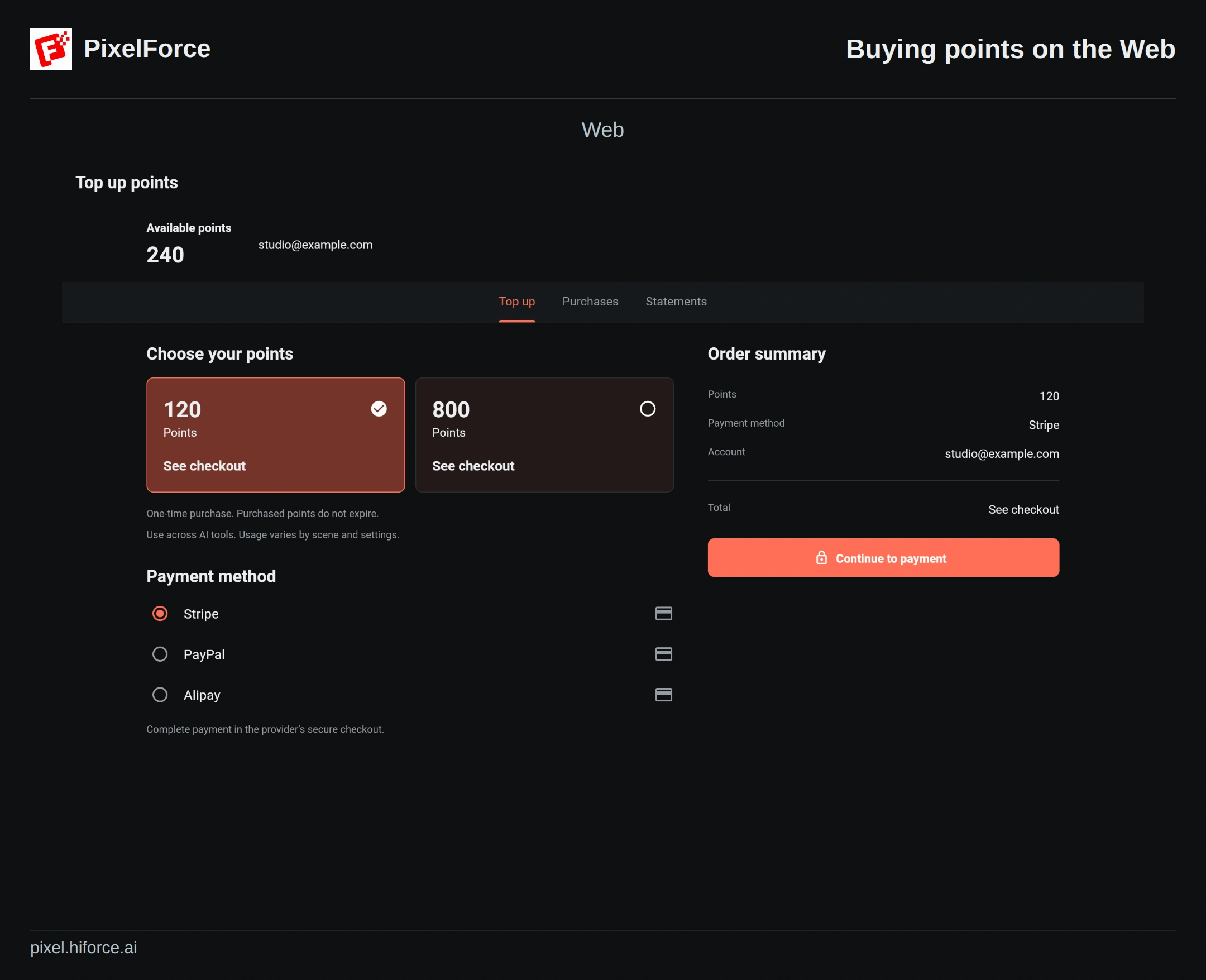
Complete your purchase
- Select your package and review the account, points and payment method.
- Choose Continue to payment and review Confirm purchase.
- Continue to the official checkout. Check its final price and currency, then authorize payment.
- Return to PixelForce and allow it to verify the purchase and add the points.
- Look for Points added and check your balance. Open Purchases to see the order.
Keep the store receipt or payment confirmation until the points appear. Do not start another purchase just because returning to PixelForce takes a moment.
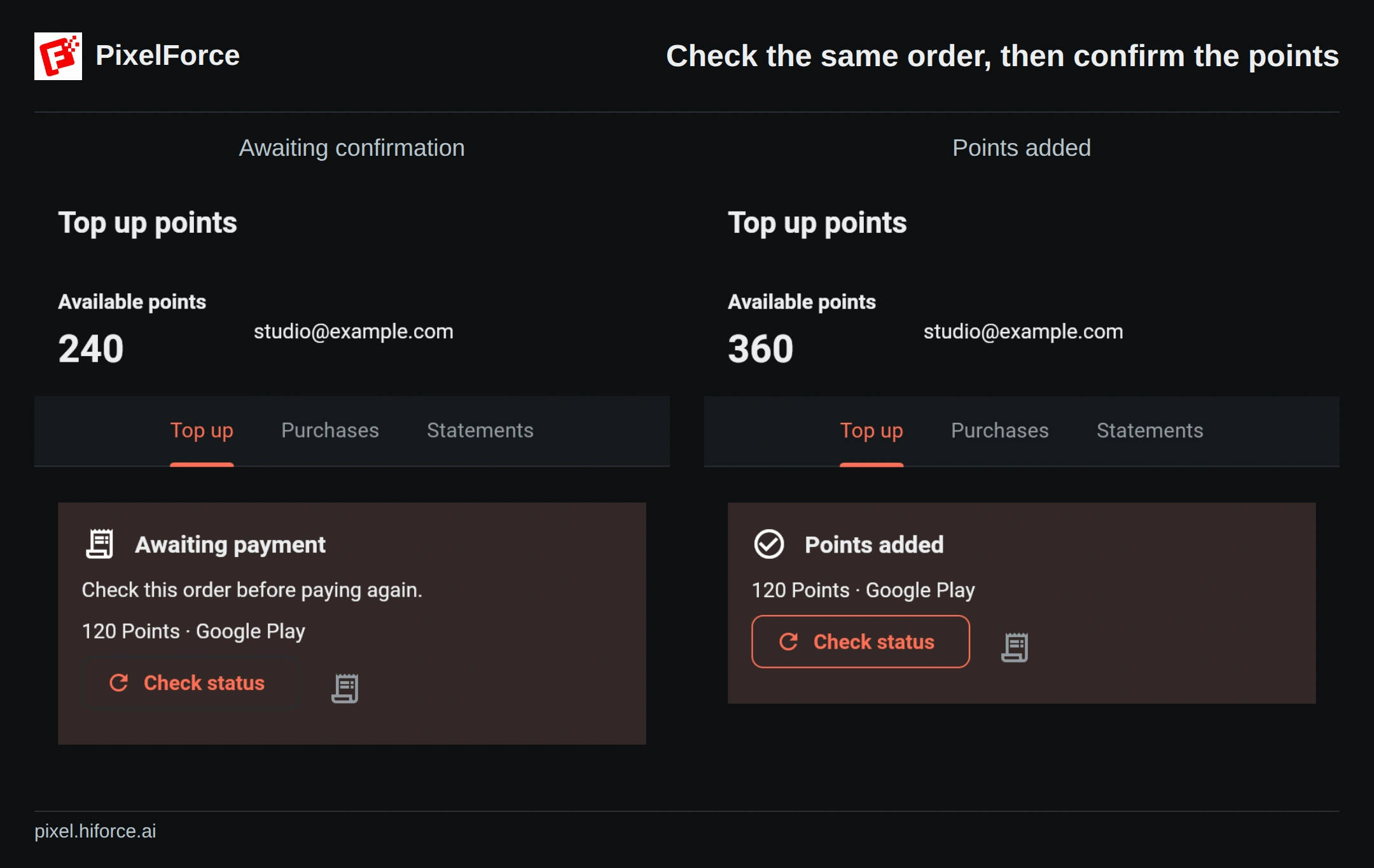
Paid, but the points have not appeared?
Stay signed in to the same PixelForce account and choose Check status on the existing order. On mobile, Check unfinished purchases also checks for purchases that still need to be completed. These actions do not ask you to pay again.
| What you see | What to do |
|---|---|
| Awaiting payment or verification | Complete any outstanding store approval, then check the existing order. |
| Payment confirmed; points are being added | Wait for the balance to update. Do not purchase the same package again to resolve this order. |
| Status unavailable | A temporary inability to verify is not a confirmed failure. Keep the receipt and check again later. |
| Points added | Check your balance and purchase history before making a separate purchase. |
Why is the payment button disabled?
A package may not have finished loading, a price or payment method may be unavailable, or an earlier purchase may still need confirmation. Restore your connection and follow any retry or status-check action shown. An unresolved purchase can also prevent switching packages.
If the button stays disabled after points arrive, reopen the top-up screen and check unfinished purchases. Do not switch accounts or repeatedly authorize payment to try to unlock it.
Canceling is not the same as a refund
If Cancel payment is available, it closes an eligible unpaid PixelForce order. It does not refund an already-paid store transaction or withdraw a payment awaiting store approval. A payment confirmed later can still be credited.
PixelForce does not offer an in-app refund-request feature. For App Store or Google Play purchases, request a refund through the store. Confirmed refunds are reconciled with your points balance.
Receipts and further help
Find your order under Purchases. App-store receipts come from Apple or Google; website invoice options depend on the payment method and the order. See purchase history and receipts.
If you still need help, contact support@hiforce.ai with your PixelForce order ID, purchase time, platform, store transaction reference and a screenshot of the status. Never send a password, verification code or full payment-card details.