Purchase history, receipts and invoices
Use your purchase history to answer three questions: which package did I buy, have the points arrived, and which document should I keep? Payment records are separate from images and generation activity in Library.
Find your purchases
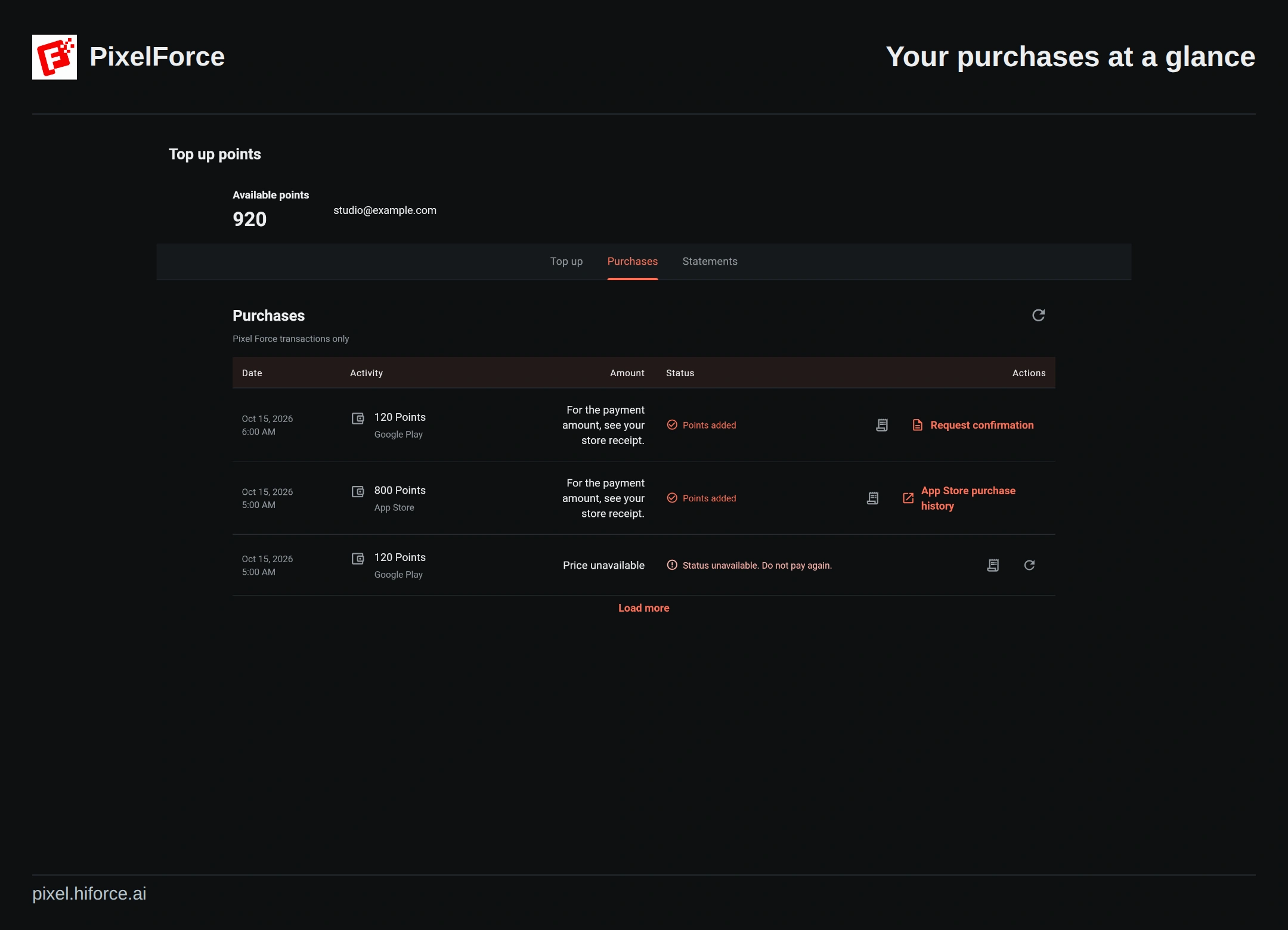
Open Account, choose Top up, then select Purchases. The same PixelForce account shows its purchases across devices; the Apple or Google account used to pay is not necessarily your PixelForce account.
Each entry shows its date, points, payment method and current status. Desktop uses an aligned list; mobile arranges the same information vertically. Use Refresh to reload the list and Load more for older entries when available. An empty list may mean you are signed in to a different account, not that a payment failed.
Open the original order
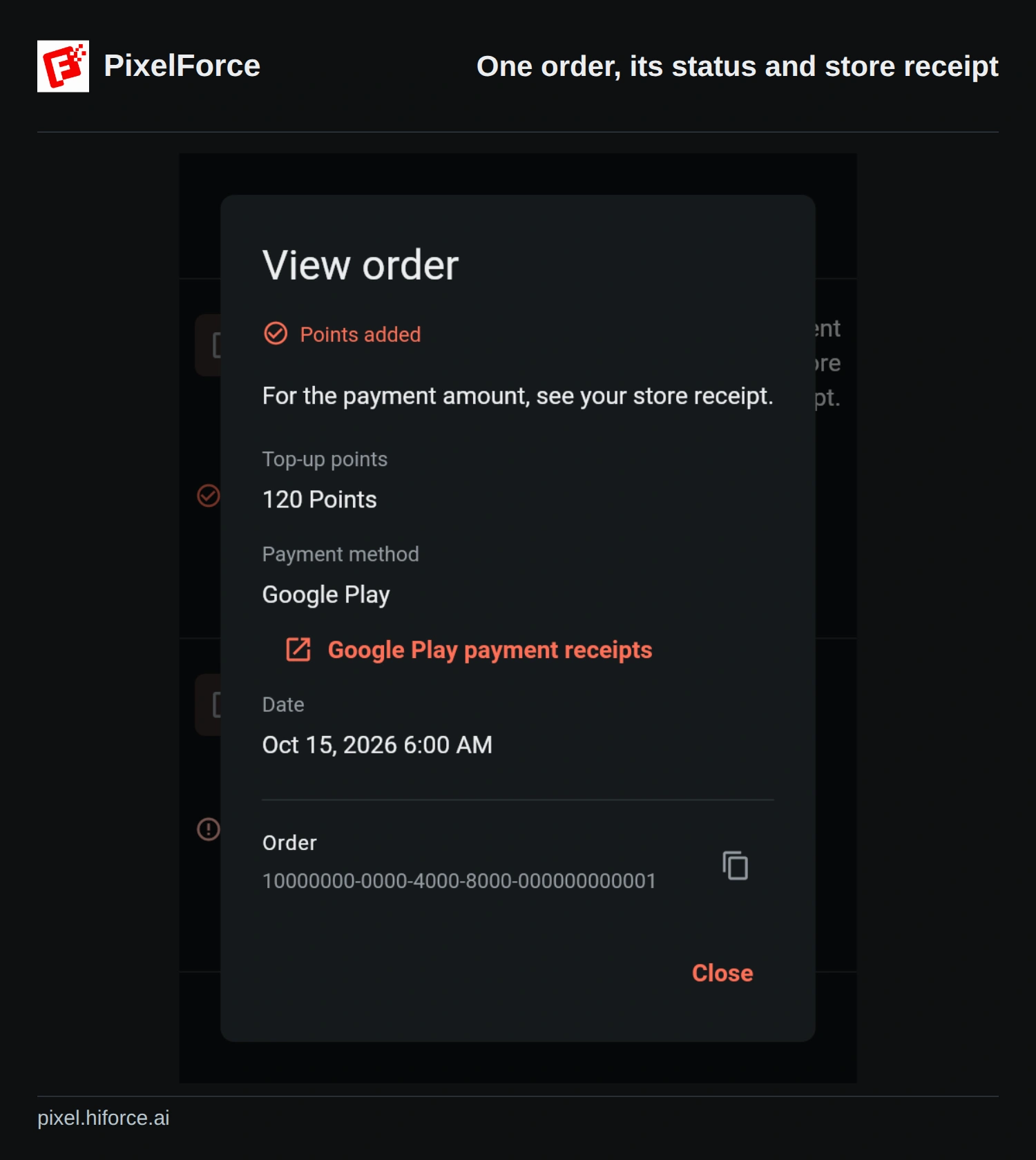
Choose View order beside the relevant entry. Check the points, payment method, date and status. The detail view includes the PixelForce order ID and a copy action; keep that ID when contacting support.
A PixelForce order ID is not the store's transaction reference. For a store purchase, the receipt/history button takes you to the appropriate store service. Use the Apple or Google account that made the payment.
Check a payment without paying again
If verification or points crediting is incomplete and Check status is available, use it on the original order. It checks that purchase rather than asking you to authorize another payment. Points added confirms the points credit; it does not mean that a separate document has been prepared.
An unavailable status is not a confirmed payment failure. Keep the receipt and check later. If points have arrived but another purchase remains blocked, reopen the top-up screen and check unfinished purchases. See buying points and checking a payment.
Choose the right document
| Document | What it is for |
|---|---|
| App Store or Google Play receipt | The store's payment record. Use it to check the amount actually paid. |
| PixelForce purchase confirmation | An available confirmation of a verified store purchase. It is not a tax invoice or a replacement for the store receipt. |
| Invoice for an eligible website order | A separate document, offered only when the order supports it. |
| Monthly statement | A PixelForce account summary of payments, refunds and points activity, not a tax invoice. |
The store may not supply the paid amount to PixelForce. “See your store receipt” or an unavailable amount does not mean that you paid zero. Do not substitute today's package price for an earlier payment. Find the original record in Apple purchase history or Google Play order history.
Document actions appear only for eligible orders. A missing action does not itself mean that points are missing. Test purchases are identified separately and are not eligible for invoices.
Request, save or email a document
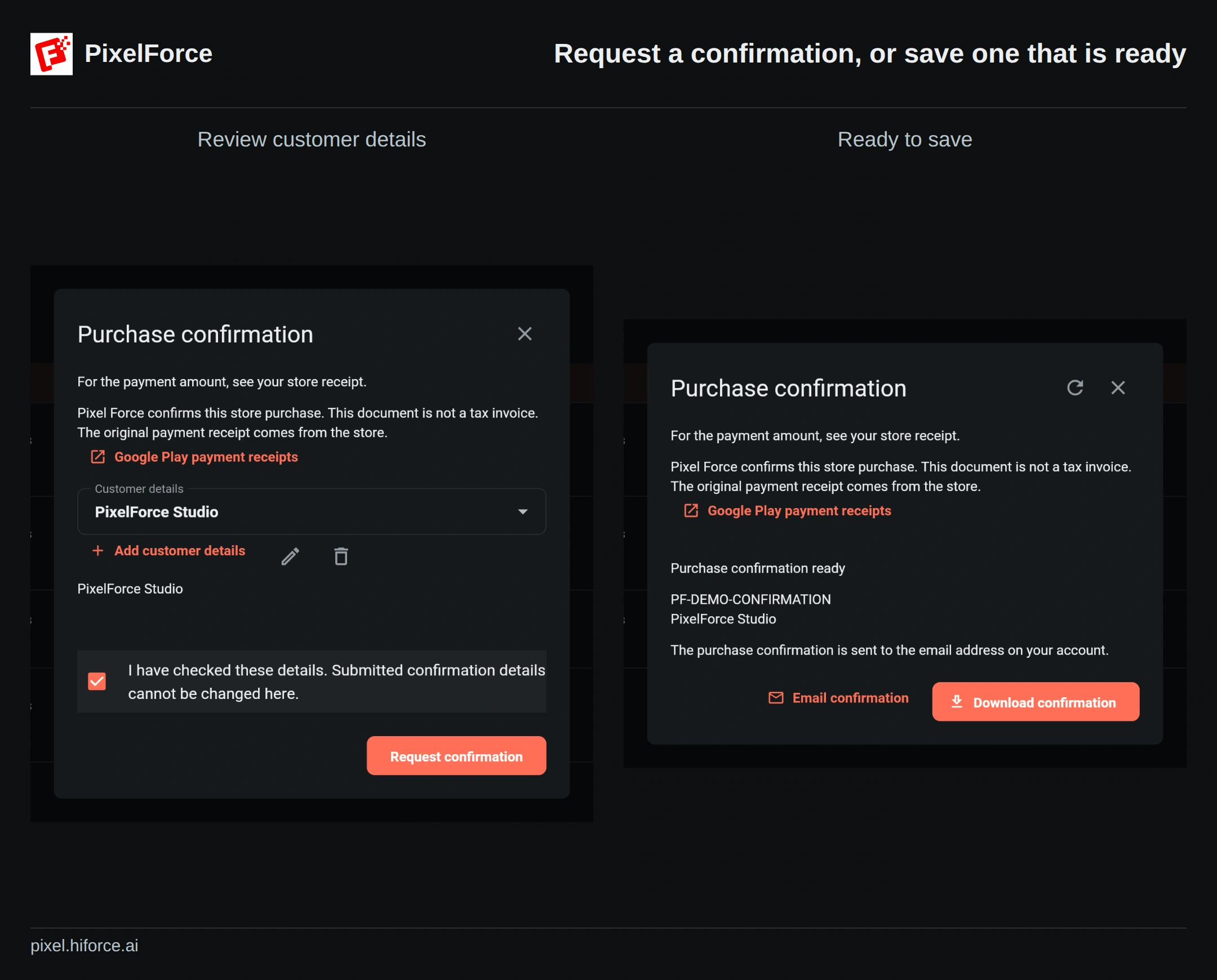
For an eligible store purchase, choose Request confirmation, select or add Customer details, then check the confirmation checkbox after reviewing the information. Submitted details cannot be changed here. Submit once, then use the document's refresh action if its status is still preparing or needs review.
When ready, Download confirmation saves the PDF; on mobile, it opens the system share/save options. Email confirmation sends it to the email address on your account. An eligible website order instead offers Request invoice and, once issued, Download invoice and Email invoice. Follow the fields and actions shown for that order.
If email delivery is pending, wait before resending. Check the account's verified email and spam folder. A retry or resend should concern the same document, not a new purchase or another application.
Read your monthly statement
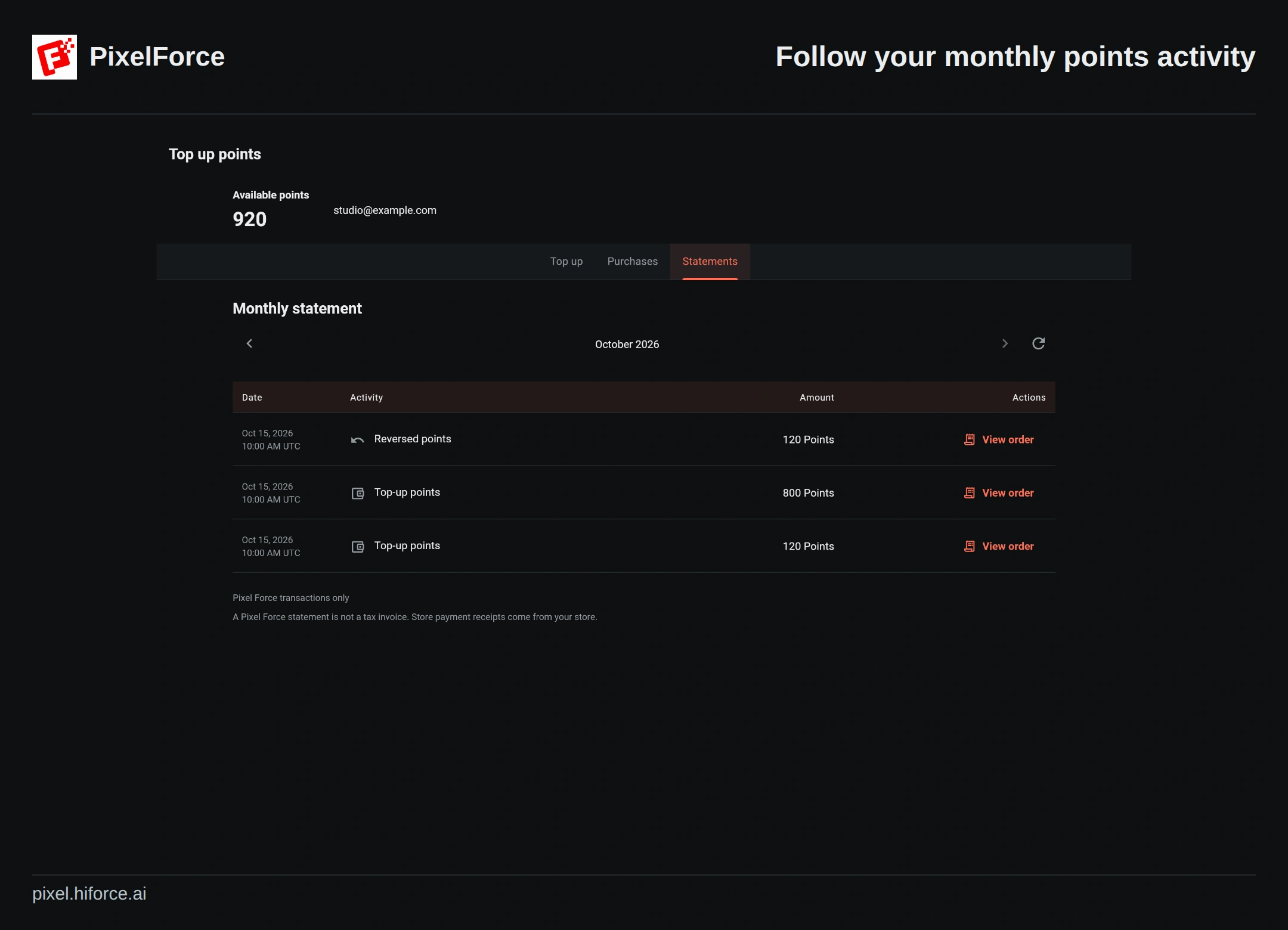
Select Statements and use the month arrows to move between available months. It can include payments, refunds, points added and reversed points. Where payment amounts are available, totals are grouped by currency; do not add different currencies together as if they were one.
Statement entry times are marked UTC; purchase details use your device's local time. A month/date difference near midnight can therefore be expected. Choose View order on a statement entry to inspect its source order.
If a record or document looks wrong
Refresh, load older entries where offered and confirm the PixelForce account first. If a document request lost its response, reopen it and check its status before submitting again. Neither downloading a document nor checking an order is another purchase.
Canceling an eligible unpaid order is not a refund of a paid transaction. Store refunds must be requested through the store; deleting a Library image does not reverse a purchase.
Contact support@hiforce.ai with the PixelForce order ID, purchase time, platform, app version, store reference if available and a screenshot of the issue. Never send passwords, verification codes or full card details.