Make your first image
Start with Text to image: describe what you want, choose a few settings and create a picture without uploading a photo. This walkthrough uses the flower-petal portrait shown below, so you can follow a complete example from prompt to saved image.
Want to use your own photo instead? Try AI Portrait Studio for a new portrait look, or AI Retouch to edit an existing picture.
1. Sign in and open Text to image
Open PixelForce Web or the PixelForce app on Android, iOS or macOS, and sign in. Use the same account and sign-in method on your other devices to return to your work. Check your points balance in Account; you will need enough points for the generation you choose.
In Create or Explore, open Text to image. On a phone, the creation form and result appear in separate tabs; on a wider screen, they can appear side by side.
2. Give the image a clear direction
For this example, the key ingredients are a close-up face, pink-orange flower petals, natural skin detail, soft light and a teal-blue background. You do not need to choose a model or upload a reference photo.
If Petal beauty portrait is available among the examples, select it to load the prompt. Otherwise, expand the text below and paste it into Your prompt. Leave the optional visual choices unset for your first run: the prompt already describes the lighting and look.
Copy the complete flower-petal portrait prompt
Close-up portrait of a young woman with fair porcelain skin, large vivid blue eyes looking directly at the camera, soft pink lips slightly parted, light freckles across the nose and cheeks, delicate gold glitter and tiny golden flecks scattered on her forehead, cheeks and nose, several bright orange and soft pink-orange flower petals and small blossoms adhered to her face and hair (on forehead, cheeks, near eyes, and one under the lower lip), soft brown hair pulled back, subtle makeup with glowing skin and natural blush, ethereal and dreamy atmosphere, soft diffused lighting, teal-blue background with faint out-of-focus orange flower silhouettes, ultra-detailed, photorealistic, high resolution, cinematic beauty shot, 8k
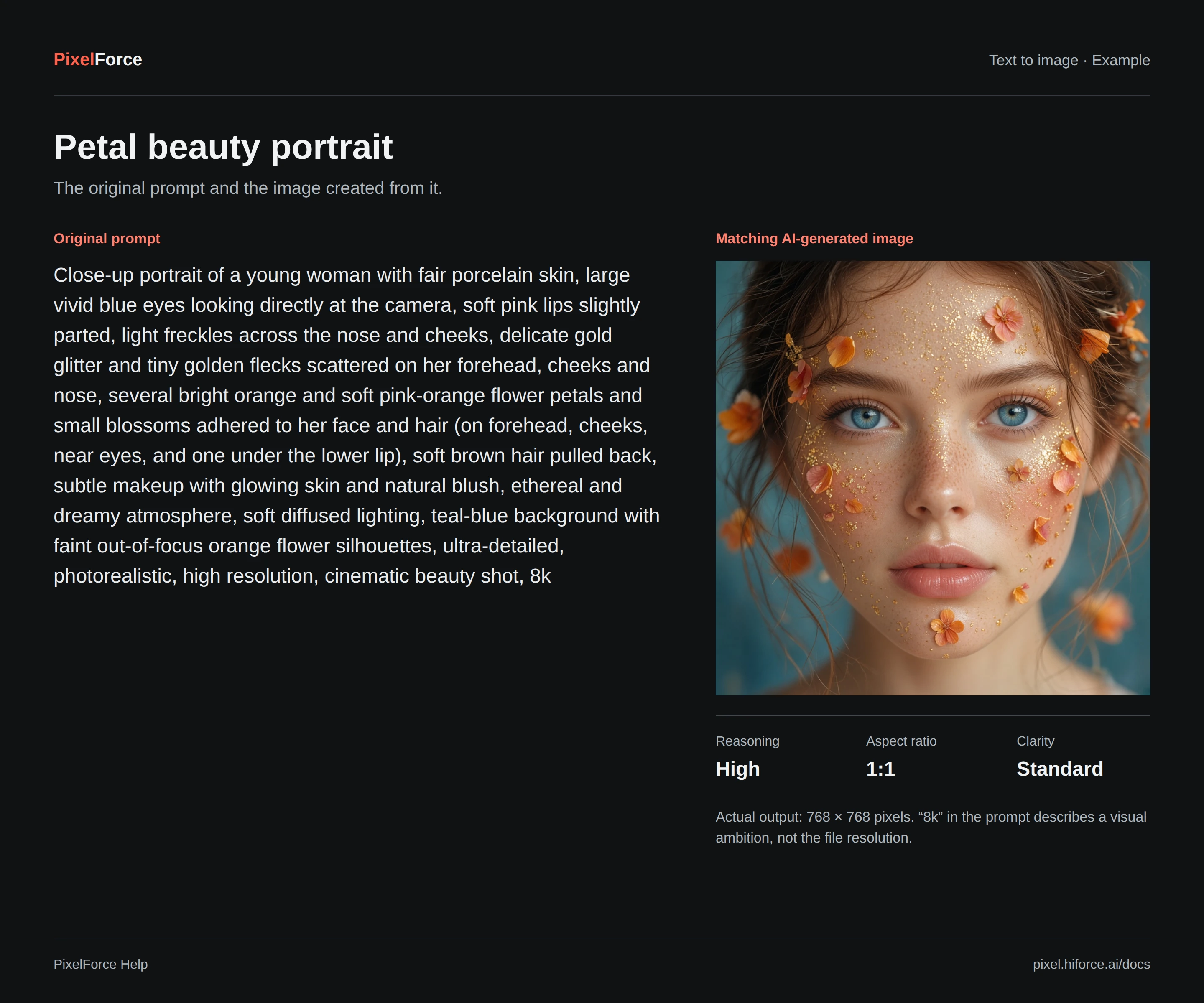
The picture is a completed PixelForce result for this prompt. Your result may vary, even with the same settings. The word 8k in the prompt describes the intended level of detail; it does not set the output resolution.
3. Choose settings and check the points cost
Use these settings for a straightforward first run:
| Setting | First-run choice | What it does |
|---|---|---|
| Reasoning intensity | High | Uses more AI resources for finer detail and better results. |
| Aspect ratio | 1:1 | Creates a square composition. |
| Clarity | Standard | Start here; HD is a separate clarity option. |
| Number of images | 1 image | Keeps your first run simple. |
Review the points requirement beside Run after changing settings. The current quote in your workspace is the one to use, not the number in a screenshot. Higher reasoning intensity, HD and additional images can increase the cost. If your balance is too low, add points in Account before continuing.
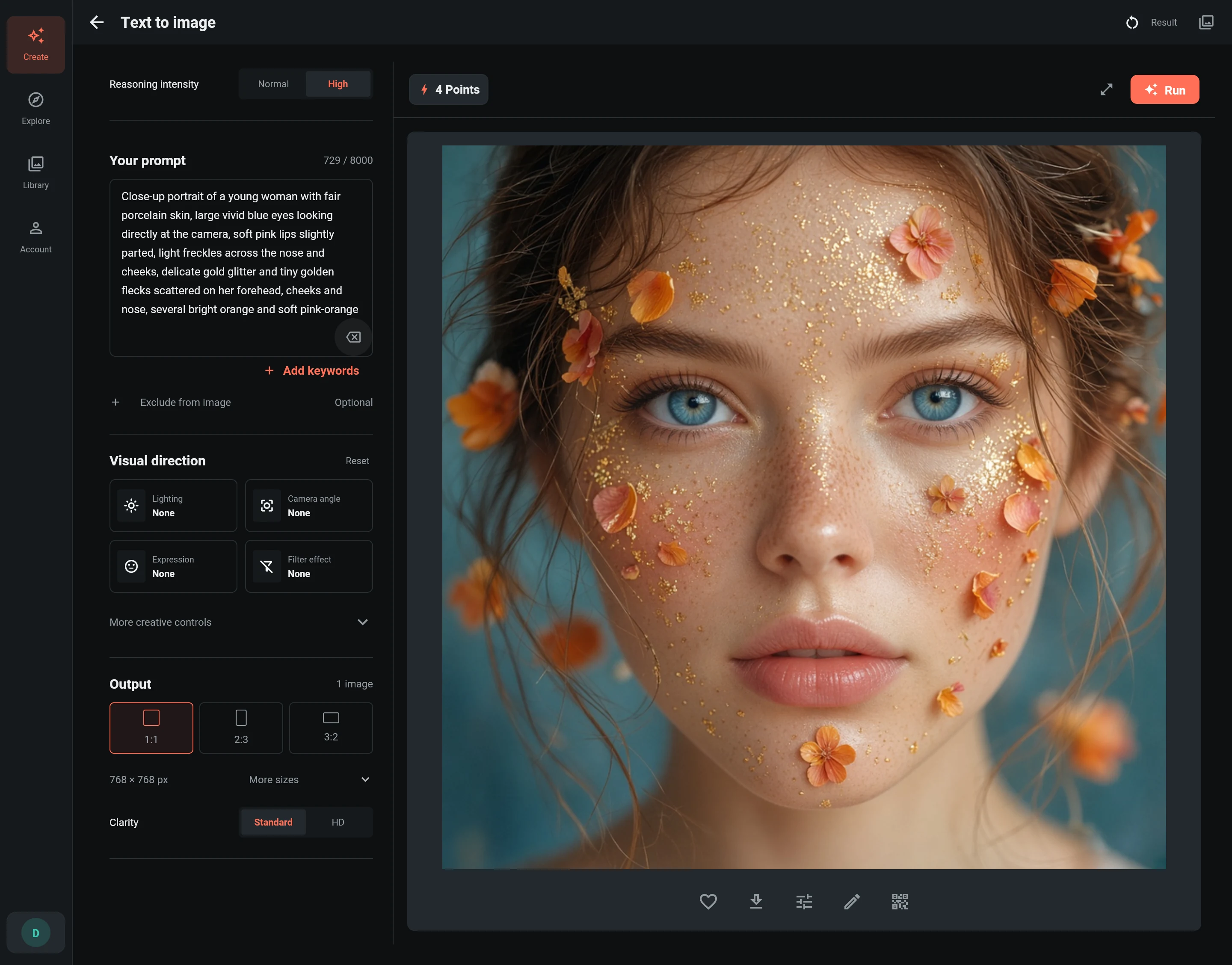
Select Run once. Follow that task's progress while the picture is being created. If you lose your connection or return to the app later, use Check task for the existing task rather than submitting the same request again. See generation and recovery for help.
4. Review and save your result
Open the completed image to inspect the face, petals and fine detail. On a phone, switch to Result if the preview is not already open.
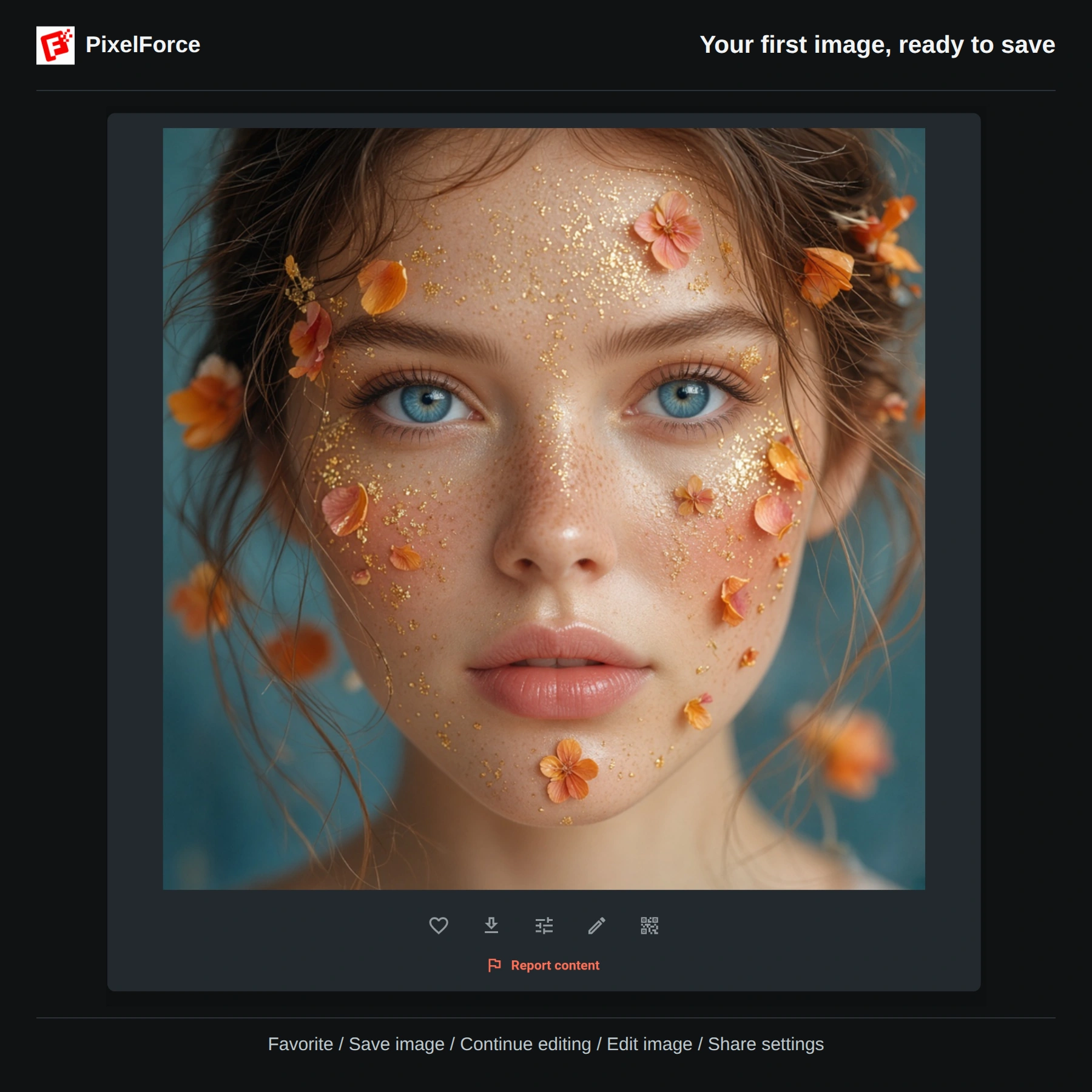
Choose Save image using the downward-arrow icon below the picture. The Web version downloads the original; Android and iOS open the system share sheet, where you can choose an available photo-saving action, save to files or send the image to another app. On macOS, choose a file location. If your browser opens a save preview, use its save action or long-press the image.
Favoriting a work makes it easier to find again, but it is not a backup: save anything you want to keep beyond the 30-day cloud history window. If a result contains inappropriate content, use the reporting action below the image.
Make it your own
- Change a few words in the prompt, then run again to explore a different background, color palette or composition.
- Continue editing sends the result to AI Retouch for changes described in words. Review the new quote: this is a separate AI generation.
- Edit image opens Image Editor for crops, filters, color adjustments and text without starting an AI generation.
Next, explore the workspace or learn how to choose and prepare your own images.
Need a hand?
| What you see | What to do |
|---|---|
| Run is unavailable | Check the prompt, required settings, sign-in status and points balance. A temporarily unavailable scene cannot start a task. |
| Progress stopped updating | Check your connection, then use Check task. Do not create a second task just to refresh the first. |
| The result differs from your idea | Make the subject, setting and lighting more specific. Remove conflicting styles and change one thing at a time. |
| The image was not saved | Finish the save action in the system share sheet or browser, check free storage and any permissions required by your chosen destination, then try again. |