Text to image
Text to image creates a new picture from your description. It is the simplest scene to start without a source photo. For changing an existing image, use AI Retouch.
Create from a prompt
- Open Text to image in Create or Explore.
- Enter the subject and the setting you want. You can start from an available example and edit its prompt.
- Choose supported style, photography, lighting, filter or magic options when useful.
- Select the aspect ratio or available size, output count and clarity.
- Review the reasoning choice and total points quote, then run once.
High is the default where supported. Higher reasoning intensity uses more AI resources to produce finer detail and better results. HD and the number of outputs are separate choices that can also affect the points quote.
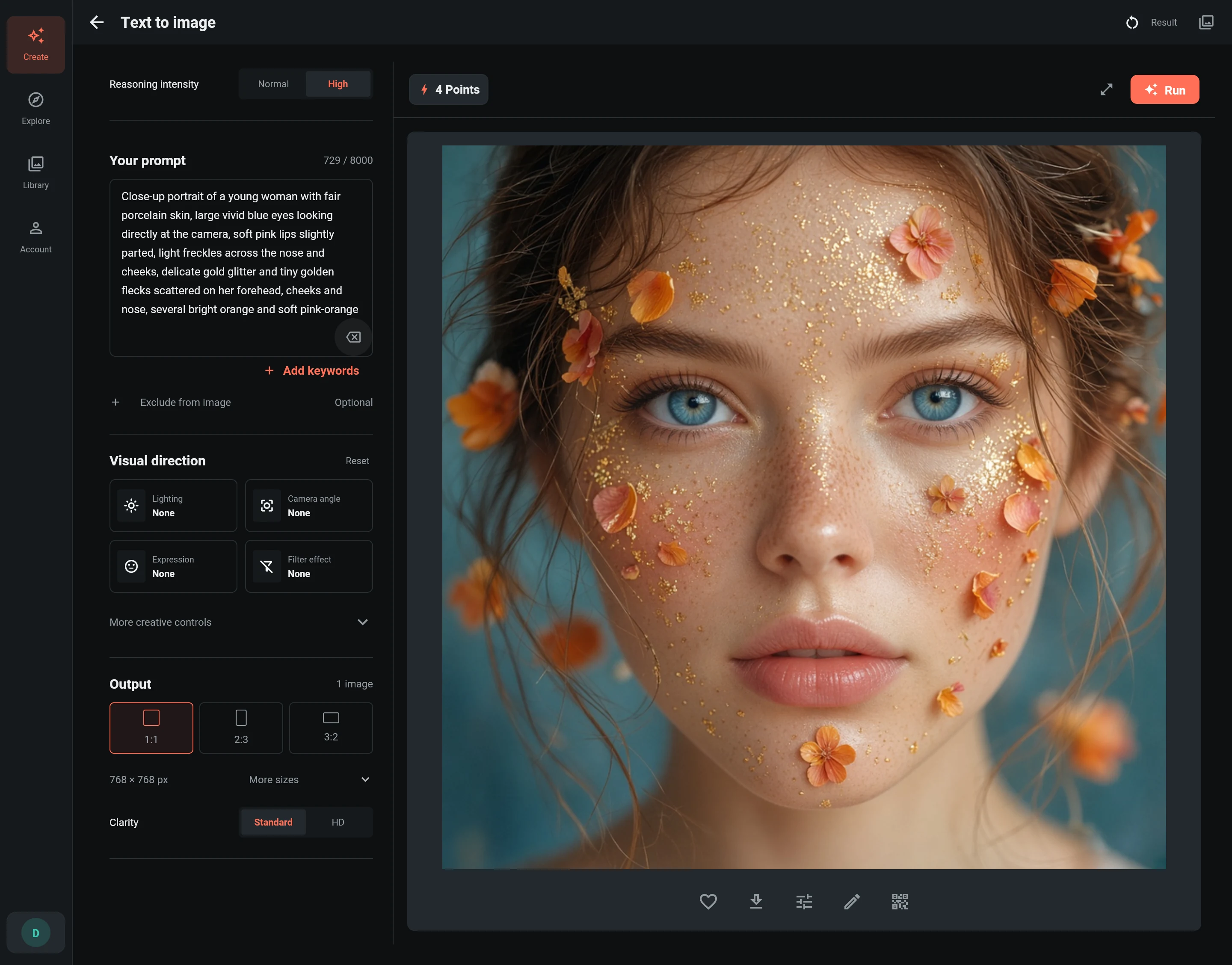
Example: Petal beauty portrait
The workspace above shows a completed example with its original settings: High, 1:1, Standard, and one image. The complete prompt and matching result are shown below. The interface is captured from PixelForce; account and points data are isolated examples, not another user's account.
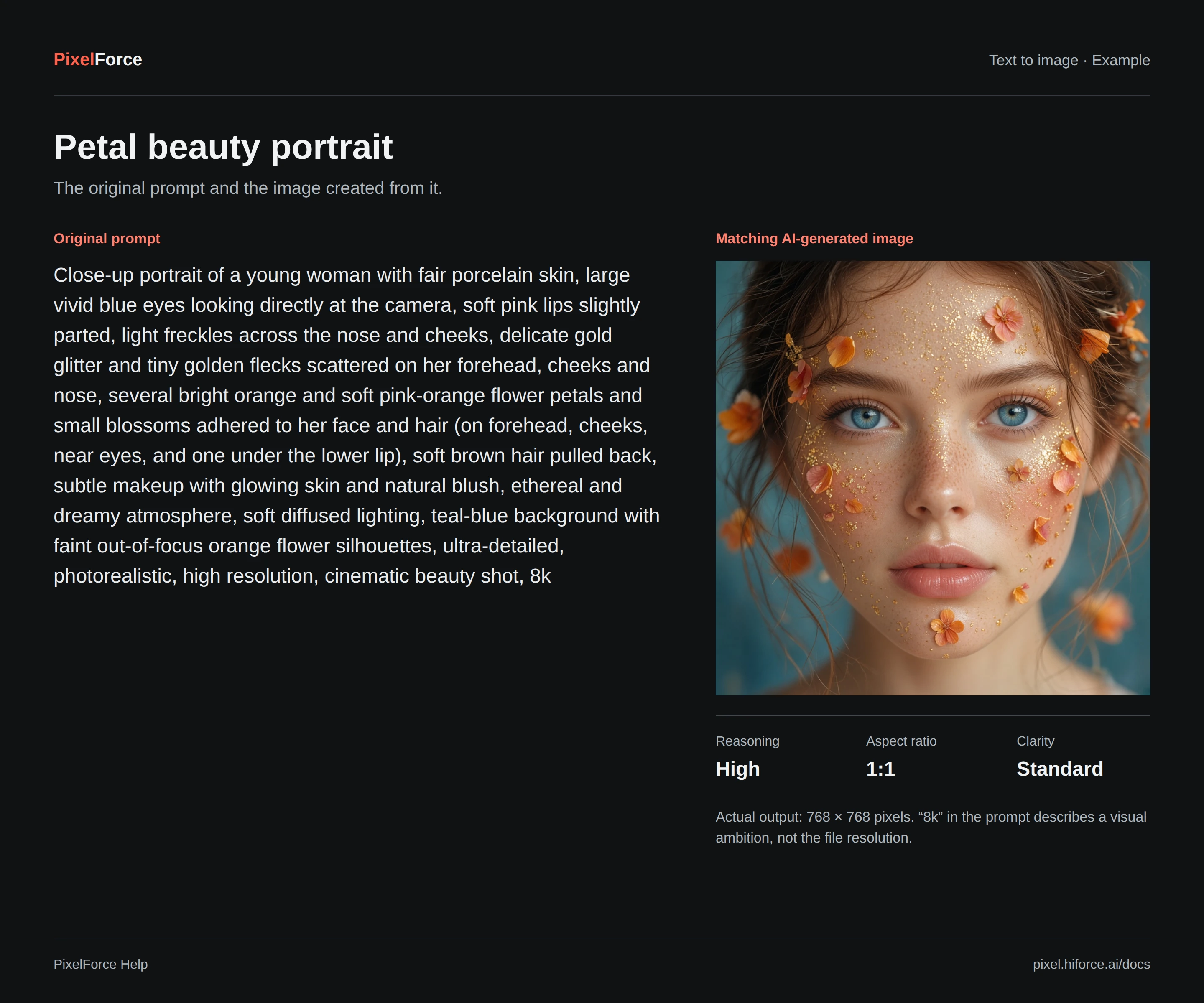
Read the complete original prompt
Close-up portrait of a young woman with fair porcelain skin, large vivid blue eyes looking directly at the camera, soft pink lips slightly parted, light freckles across the nose and cheeks, delicate gold glitter and tiny golden flecks scattered on her forehead, cheeks and nose, several bright orange and soft pink-orange flower petals and small blossoms adhered to her face and hair (on forehead, cheeks, near eyes, and one under the lower lip), soft brown hair pulled back, subtle makeup with glowing skin and natural blush, ethereal and dreamy atmosphere, soft diffused lighting, teal-blue background with faint out-of-focus orange flower silhouettes, ultra-detailed, photorealistic, high resolution, cinematic beauty shot, 8k
This example's actual file is 768 × 768 pixels. The word 8k inside its prompt is a descriptive request, not a resolution setting. Select an available output size or clarity setting to control the requested output. Reusing a prompt does not guarantee an identical image.
Use a coherent description
For example: A close-up portrait with soft pink-orange petals around the face, natural skin texture, diffused beauty lighting, teal-blue background, photorealistic. A selected example's prompt is editable. Replacing it with an unrelated prompt will naturally produce a different image.
Keep visual choices compatible. A minimalist product photo, dramatic fantasy effects and documentary realism may pull the image in competing directions. See prompt writing.
Save and reuse
Open the result for fullscreen preview, download the original or favorite it. Share settings can create a link and QR code so another signed-in user can inspect and reuse the prompt/settings. It does not transfer your points or promise an identical second generation.
Use AI Retouch to modify the selected result or Image Editor for local finishing. Each new AI run has a fresh quote.