Follow a task and recover progress
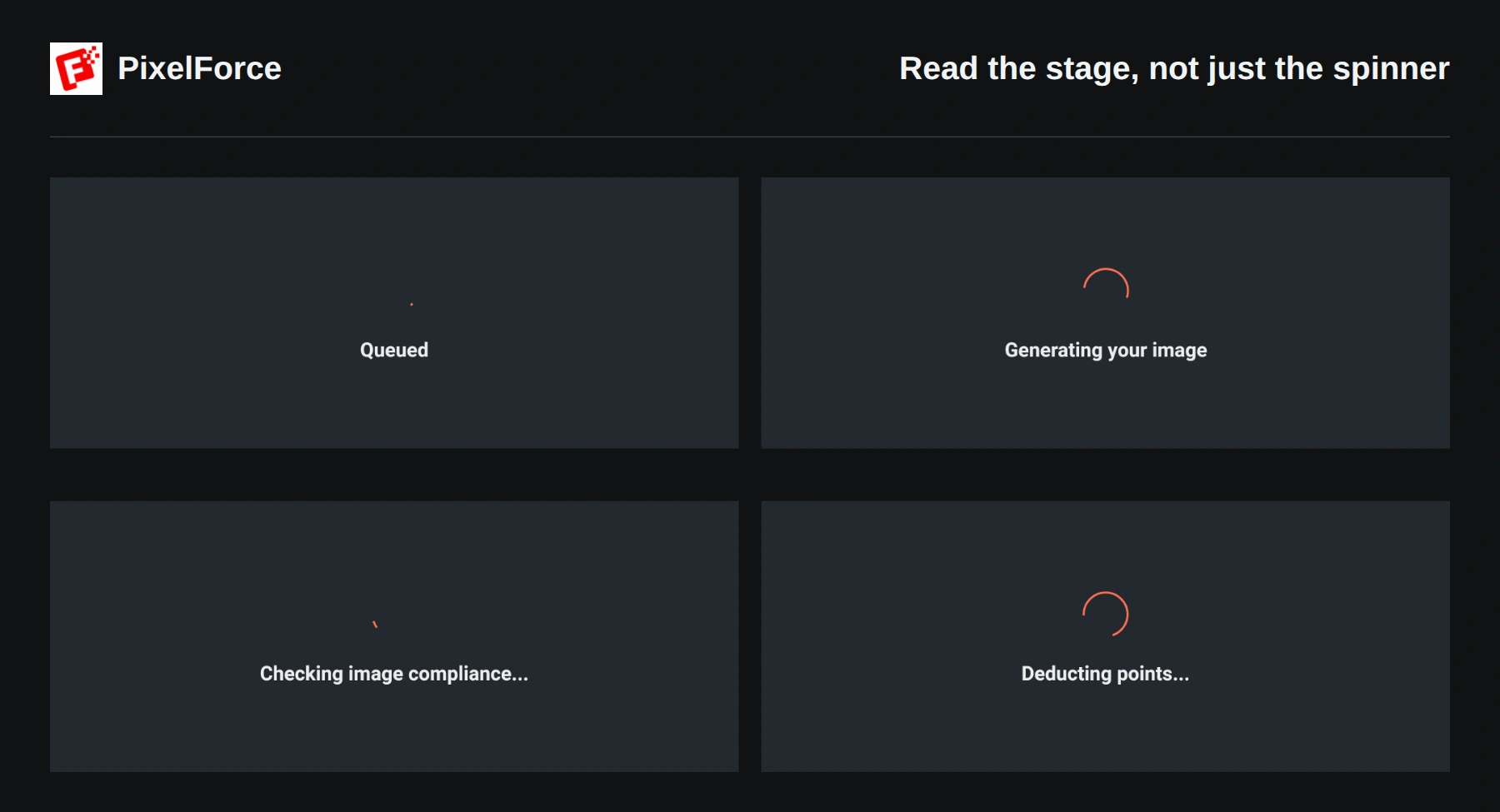
After you choose Run, PixelForce submits your request and follows the task. A spinner does not necessarily mean the image is still being generated: the task may be queued, undergoing a content check or settling points. Read the status before deciding what to do next.
Submit once and follow the original task
Finish the required inputs, review the output settings and displayed points, then choose Run once. You need enough points to proceed; a quote alone does not guarantee that a submission will be accepted.
While submission is unresolved, processing continues or points are still being settled, Run and the current form's editing controls are disabled. This protects the original request; it is not an invitation to keep tapping or open another copy of the form.
On a phone, switch to the Result tab to see progress. On a wide screen, progress appears in the result area beside the form. You can leave the tool to browse other pages, but this does not cancel accepted work.
What the status means
| Status shown | What it means | What to do |
|---|---|---|
| Submitting… | The request is being sent. A server response may not have arrived yet. | Wait. Do not start a duplicate submission. |
| Queued | The task has been accepted and is waiting to be processed. | Keep following the same task. Queued does not mean failed. |
| Generating your image | Image processing is underway. | Wait for the next status or result. |
| Checking image compliance... | Content or processing charges are being checked before the task can be finalized. | Wait; do not treat this as a new generation. |
| Deducting points... | The task outcome is known, but points settlement is still pending. | Let settlement finish. This can temporarily keep Run disabled. |
The exact stages vary by tool. There is no fixed completion time, queue-position guarantee or countdown. A moving spinner is not a percentage-complete indicator.
Find submitted work in Activity
Open Library, then select Activity. You can also open Activity from Account near the points balance.
The list includes tasks without completed images, so it is more useful than the image grid when checking a delay or failure. Each entry shows its date and status. While a task is unfinished, the subtitle shows its current stage; after finalization, it shows Charged and Refunded points. Use the refresh icon to request the latest records.
The current history view covers the past 30 days and loads more entries in batches when available. Check the same account, the submission date and the newest status rather than assuming a missing thumbnail means no task was created.
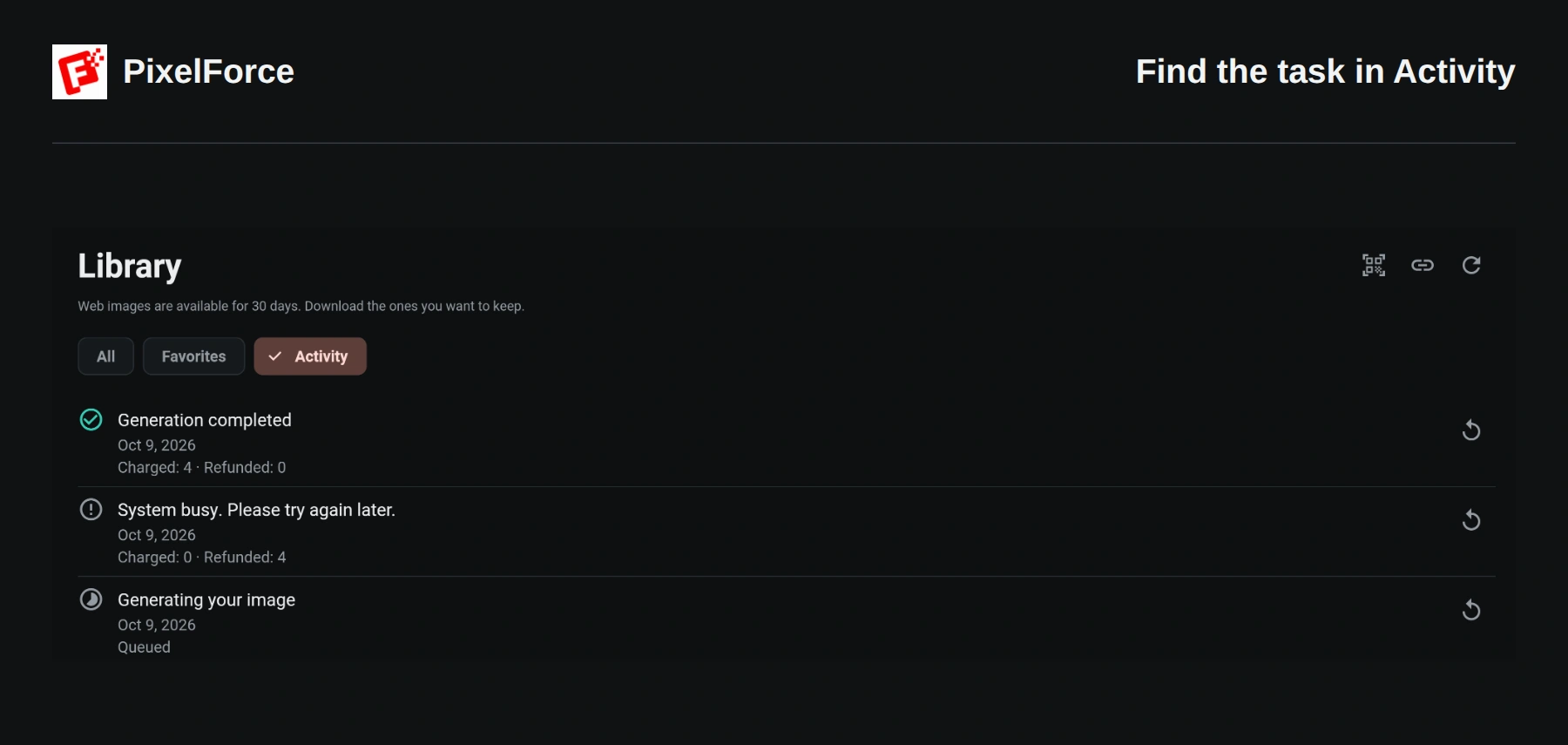
Completed entries with images can be opened to view the result. The Reuse settings arrow prepares parameters for another task when editing is available; it does not check the original task or generate automatically. Use it only when you deliberately want another run.
Recover an unconfirmed submission
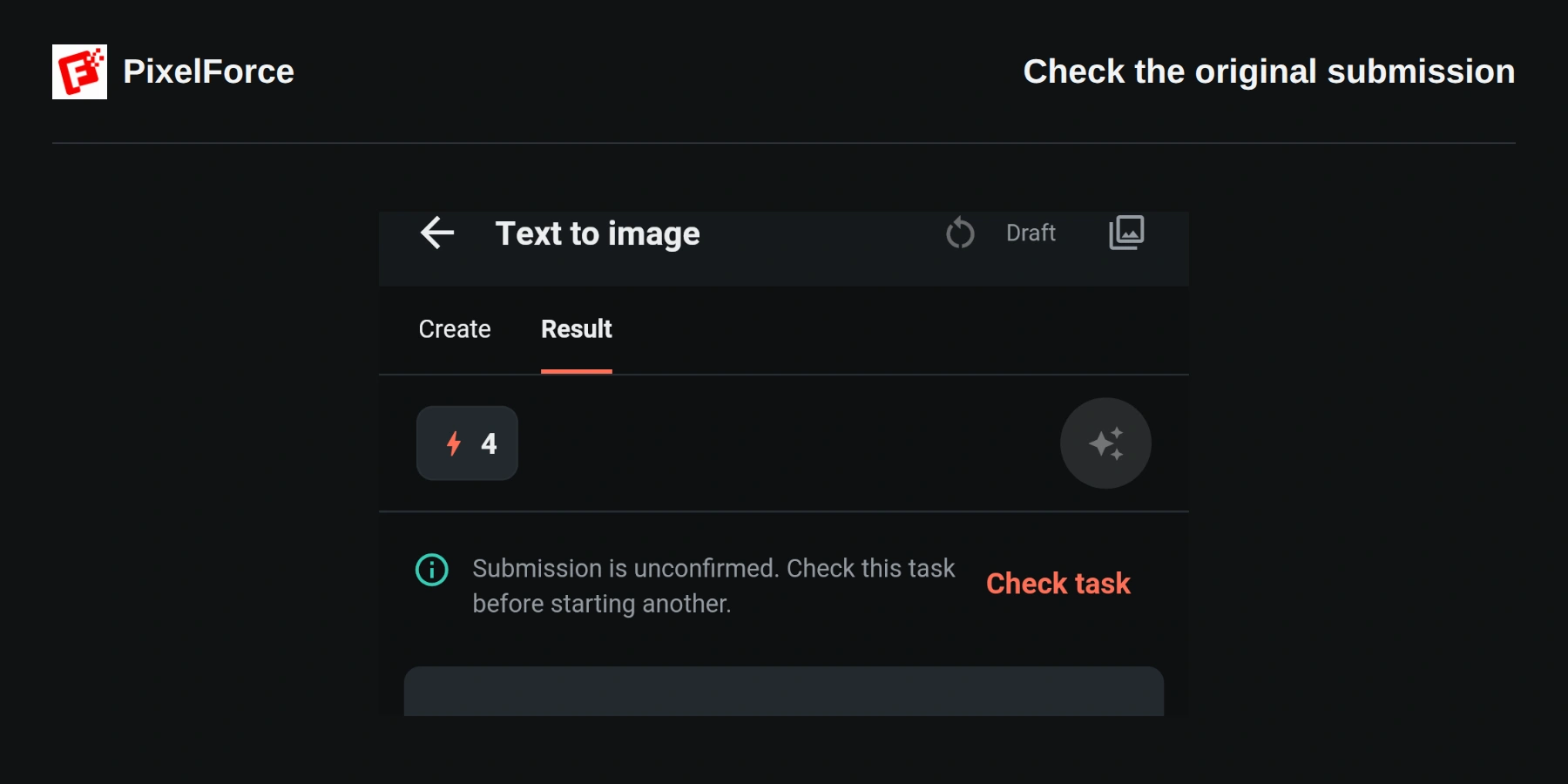
If you see Submission is unconfirmed. Check this task before starting another., PixelForce cannot yet confirm the outcome of the original submission. This is different from a confirmed generation failure.
- Restore a stable connection and stay signed in to the same account.
- Choose Check task when it is offered. This looks up or resumes the original request instead of creating an unrelated replacement.
- If the task is found, continue following its stage or result. If checking still fails, keep the original task and try again once the connection is stable.
Do not clear browser data, uninstall the app or change accounts to try to unlock Run. These actions can remove or separate the local recovery information without cancelling server-side work.
After closing or reopening PixelForce
An accepted server task is not cancelled when you close the page, lock your phone or leave the app. The interface may stop updating while it is in the background, even though server-side work continues.
On the same installation or browser profile, PixelForce attempts to restore a saved in-progress request for the same account. From the home screen, open the ongoing-generation entry if it appears. On another device, sign in to the same account and check Library → Activity; do not expect the other device to have the same local recovery checkpoint.
Restoring a saved request is not the same as preserving every unfinished form. Save useful results, and use explicit parameter reuse when you want to prepare a new task.
Generation failure versus image-loading failure
| What you see | Recommended action |
|---|---|
| System busy. Please try again later. or This generation could not be completed. | Check the task record and points outcome. Once the original task is finalized, revise the request if necessary and explicitly start a new run later. |
| A connection warning while a task remains unfinished | Use Check task when available. A failed status refresh is not proof that the image generation failed. |
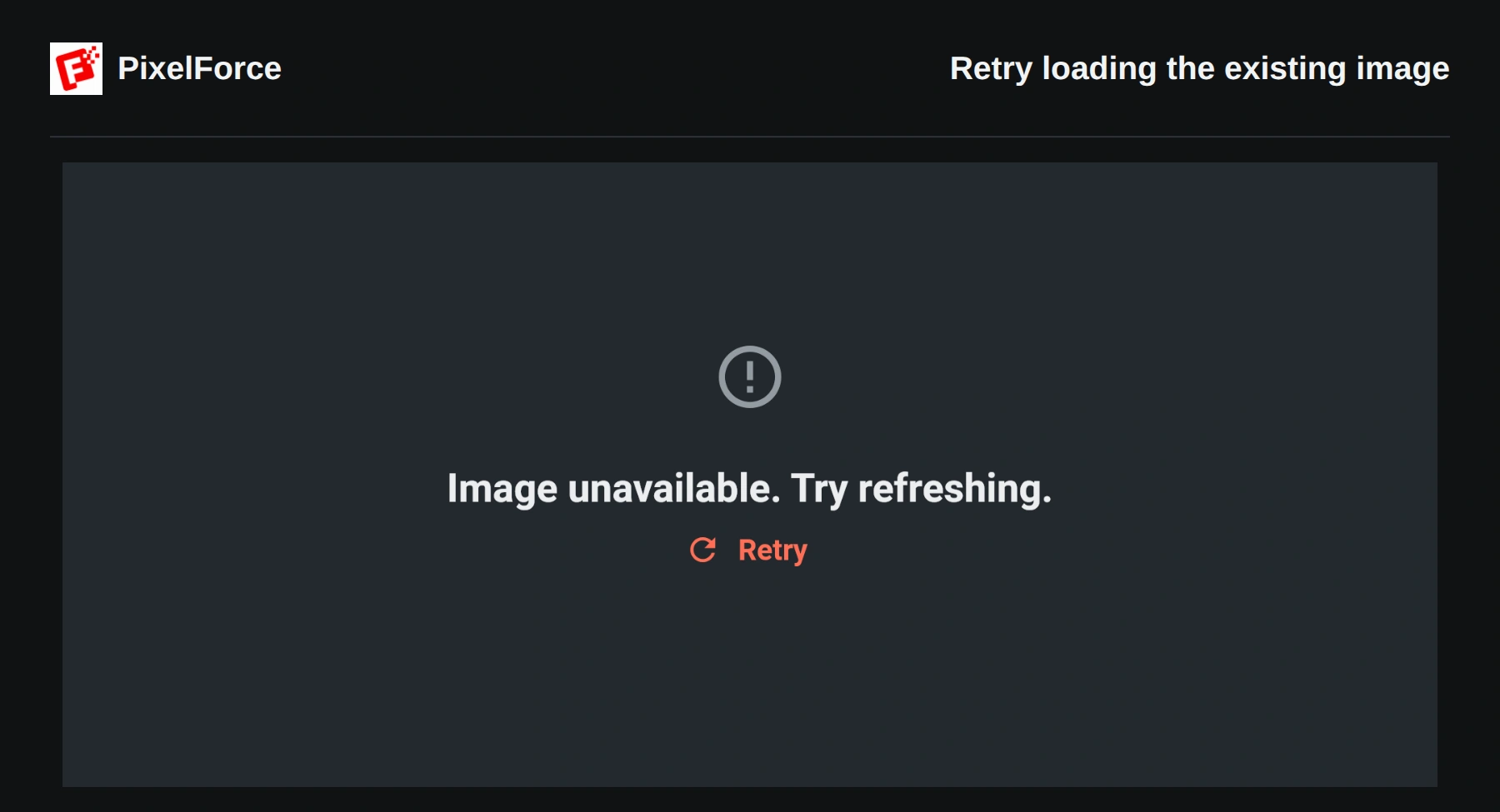
| Image unavailable. Try refreshing. after completion | Choose Retry in the result area to load the existing image again. This does not request another generation. You can also reopen the work from Library. |
| A content warning or a locked notice image | Review the message and change the prompt or input image where appropriate. A notice is not the requested usable result. Do not keep submitting the same blocked content. |
Temporary service failures can receive limited automatic handling within the original task. They do not guarantee success or a fixed recovery time. Wait for a confirmed task outcome before deciding to submit again.
Portrait sets and points settlement
In AI Portrait Studio, photos complete individually and the gallery can fill as results arrive. Some photos could not be completed; completed photos are available below means the set is partially successful, not empty. Keep the completed photos and inspect the set before deciding what to generate again. See AI Portrait Studio.
Generation status and points settlement are separate. If settlement is still pending, even a failed or completed task can remain locked while the final charge or release is confirmed. Check Charged and Refunded in Activity and refresh the balance in Account after finalization.
Failure does not automatically mean every point has been refunded. If the task shows AI processing cost incurred., processing costs were incurred; use the displayed final points record rather than assuming a zero charge. For billing questions, see Points and usage. Do not repeatedly top up or create replacement tasks to resolve a stuck settlement.
Cancellation and getting help
The current creation interface has no user-facing cancel-generation button. Leaving the page, signing out, refreshing or deleting a Library image does not cancel an accepted task. Do not delete inputs or reset local storage as a recovery method.
If a task stays unchanged for an unusually long time, or remains locked after repeated status checks, contact support@hiforce.ai using Troubleshooting and support. Include:
- The tool used, submission time and time zone.
- A screenshot of the status or message, plus the tenant ID and full version/build from Account.
- Whether the issue followed a connection interruption, app restart or device change.
- The task identifier, if you already have one; the standard Activity list does not offer a task-ID copy button.
Never send passwords, verification codes, access tokens or payment credentials. See Settings and privacy for account and privacy information.