Account, language and privacy
Open Account to check who you are signed in as, change the interface language and appearance, and find privacy information. On a wide screen, use the account entry at the bottom of the sidebar; on a phone, use the main navigation.
These settings personalize your workspace. They do not change the prompt, lighting or style of an image you are generating.
Check your account and app version
- Check the name and, when available, the email address shown at the top of Account & settings.
- The tenant identifier appears in parentheses after your name, such as
Studio user (HF...). It helps support identify the account whose works and points you are asking about. - Find the full application version at the bottom of the page. Keep the build number after
+, not just the main version number. - If your points or works look unfamiliar, check that you used the original account and sign-in method. Creating another account does not move your existing balance or images. See sign-in methods.
For purchase records and documents, see purchase history, receipts and invoices.
Language and appearance
- Open Language and choose your preferred interface language.
- Under Appearance, choose a theme. On a phone, tap the current theme to open the chooser, then select the one you want. On a larger screen, the previews appear together.
- Return to your tool; its interface uses your selected language and appearance.
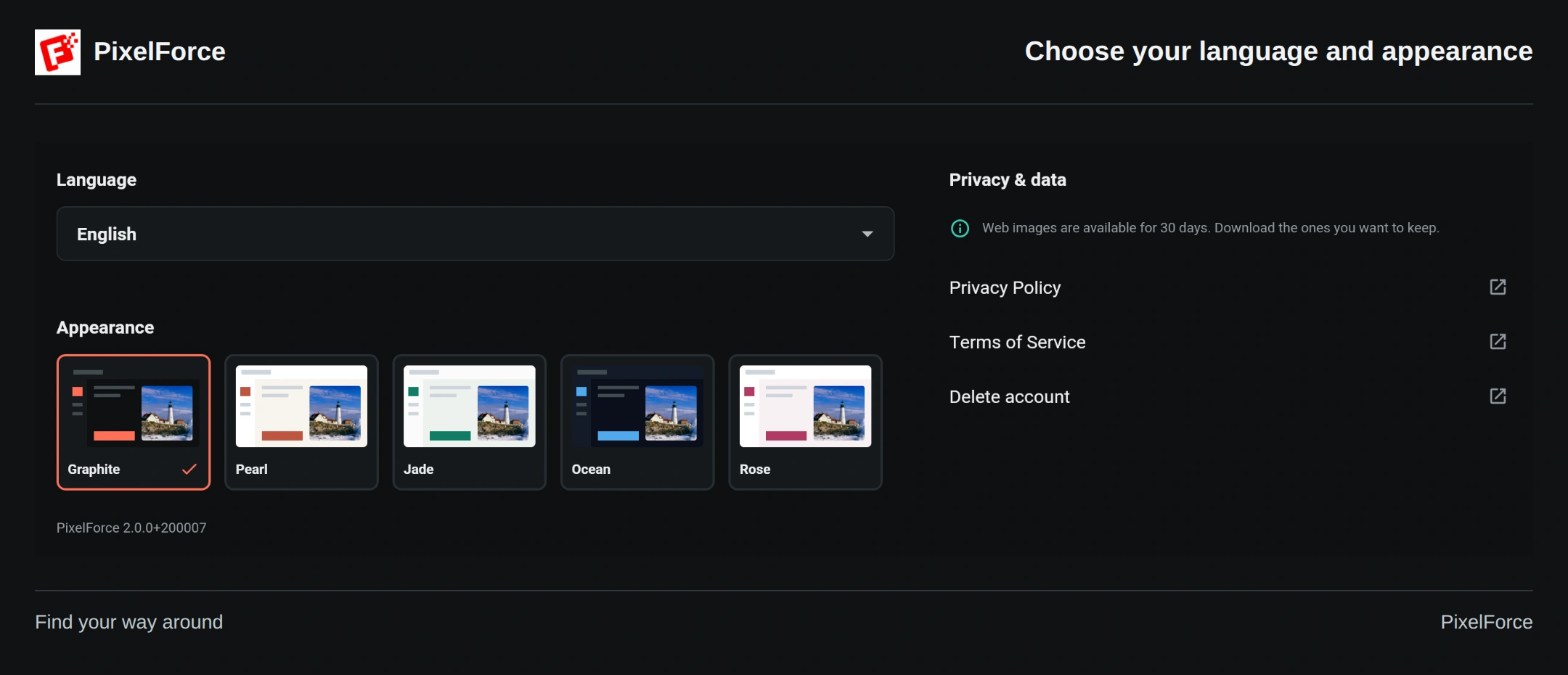
Changing the language does not translate a prompt you have already written. The help site's language switch is separate from the app's preference. If a linked policy opens in English, use that document's language selector; the direct links below open the English versions.
Read the official privacy information
You can open these documents from Privacy & data in Account, or use the direct links here. This guide explains everyday controls; the official documents describe the current processing practices, terms and deletion procedure.
| Document | What to look for |
|---|---|
| PixelForce Privacy Policy | Account and image data, portrait processing, service providers, storage, retention and privacy requests. |
| Terms of Service | Using the service, your content, generated results, points and purchase conditions. |
| Account and Data Deletion | How to request deletion, verify ownership and understand which records may need to be retained. |
Choose images and control device access
Only select images you have permission to use. Take particular care with identifiable people, children, client materials and unreleased products.
- Photos, camera and files: choose a source when the feature asks for one. Camera scanning and taking a photo may ask for camera access. Selecting one photo does not authorize uploading the rest of your library. See choosing images.
- Local Image Editor: ordinary crop, rotation, filters and adjustments run on your device or in your browser. Opening a local image there is not itself an AI generation. Opening an existing cloud result may download that image.
- AI tools: using an image in an AI workflow involves cloud processing of the necessary inputs and instructions. This is different from local editing; see the Privacy Policy for service providers and portrait processing.
Manage permissions in your device's system settings or the browser's site settings, as applicable. If camera access is denied, selecting an existing photo or file may still be available. Changing a permission does not delete images you previously uploaded.
Keep important works and share carefully
Library's cloud-history queries cover the past 30 days. Save important originals before they become unavailable; marking a work as a favorite is not a permanent backup. A saved copy in Photos, Files or another folder remains under your control. See Library and deletion.
The 30-day history window is not a promise that every account record, server file, diagnostic entry, provider copy or portrait cache is erased on day 30. For removal of related data, follow the deletion instructions below.
Before choosing Share settings, check the prompt and inputs. A settings link can make the source photo, masks or references available as well as the result and settings, depending on the scene. Someone holding the full link or its QR code may be able to access that shared content; do not treat it as a private image-only preview.
Use Shared settings in Library to revoke a link you no longer want people to use. Revocation stops future access through that share; it cannot recall copies already obtained. Read sharing and QR codes before publishing sensitive material. Some direct image URLs may also be accessible to anyone holding them, as explained in the Privacy Policy.
Sign out, delete a work or delete your account?
| Action | What it does, and what it does not do |
|---|---|
| Sign out | Ends your use of the current session. It does not delete the account, cloud works or files you exported. Use it when you finish on a shared device. |
| Delete a work in Library | Removes that work from your account across devices after they refresh. File cleanup runs separately. It is not an account-deletion request or a refund. |
| Revoke shared settings | Stops future access through that share. It does not erase files or settings someone already copied. |
| Delete account in Account | Opens the official deletion instructions. Opening the page alone does not submit a request or immediately erase your account. |
Before requesting account deletion, save anything you want to keep and read Account and Data Deletion. Email support@hiforce.ai with the subject PixelForce Account Deletion Request, your account email or sign-in method, and your tenant identifier when available. Say whether you want to delete the whole account or only specific works and related data, including portrait-derived records where relevant. Ownership verification may be required.
Deletion does not erase your Google or Apple account, automatically refund a purchase or remove copies from someone else's device. Some transaction, security and legally required records may need to be retained; backups and providers can have separate deletion cycles. The official instructions explain the scope and process.
Ask for help safely
For a settings problem or privacy request, contact support@hiforce.ai. Include the tenant identifier, full version and build number, platform, approximate time and what you were trying to do. For a specific image, include its task or work identifier if available. Hide private information in any troubleshooting screenshot.
Never send passwords, email verification codes, access tokens, Google or Apple credentials, or full payment details. Do not attach identity documents or original/generated images merely to request account deletion.